
What is Ray Tracing and How to Use It in 3ds Max?
Ray tracing is a rendering technique that simulates real light behavior to create realistic shadows, reflections, and lighting.
Creating realistic renders in 3ds Max is no longer just about modeling and textures. Lighting and reflections play a huge role in making a scene feel believable, and this is where ray tracing becomes important. From accurate shadows to realistic glass and metal materials, ray tracing helps simulate how light behaves in the real world.
Whether you are working on architectural visualization, product rendering, or animations, understanding ray tracing can significantly improve the quality of your renders.
In this guide, we will explore how ray tracing works in 3ds Max and how you can use it to create more realistic visuals.
What is Ray Tracing?
Ray tracing is a rendering technique that makes 3D images look more realistic by simulating how light behaves in the real world. It traces how light rays bounce between objects to create accurate shadows, reflections, refractions, and natural lighting effects in a scene.
In 3ds Max, ray tracing is used through render engines like V-Ray, Corona, and Arnold to create realistic lighting, reflections, shadows, and materials in 3D scenes.
How Does Ray Tracing Work in 3DS Max?
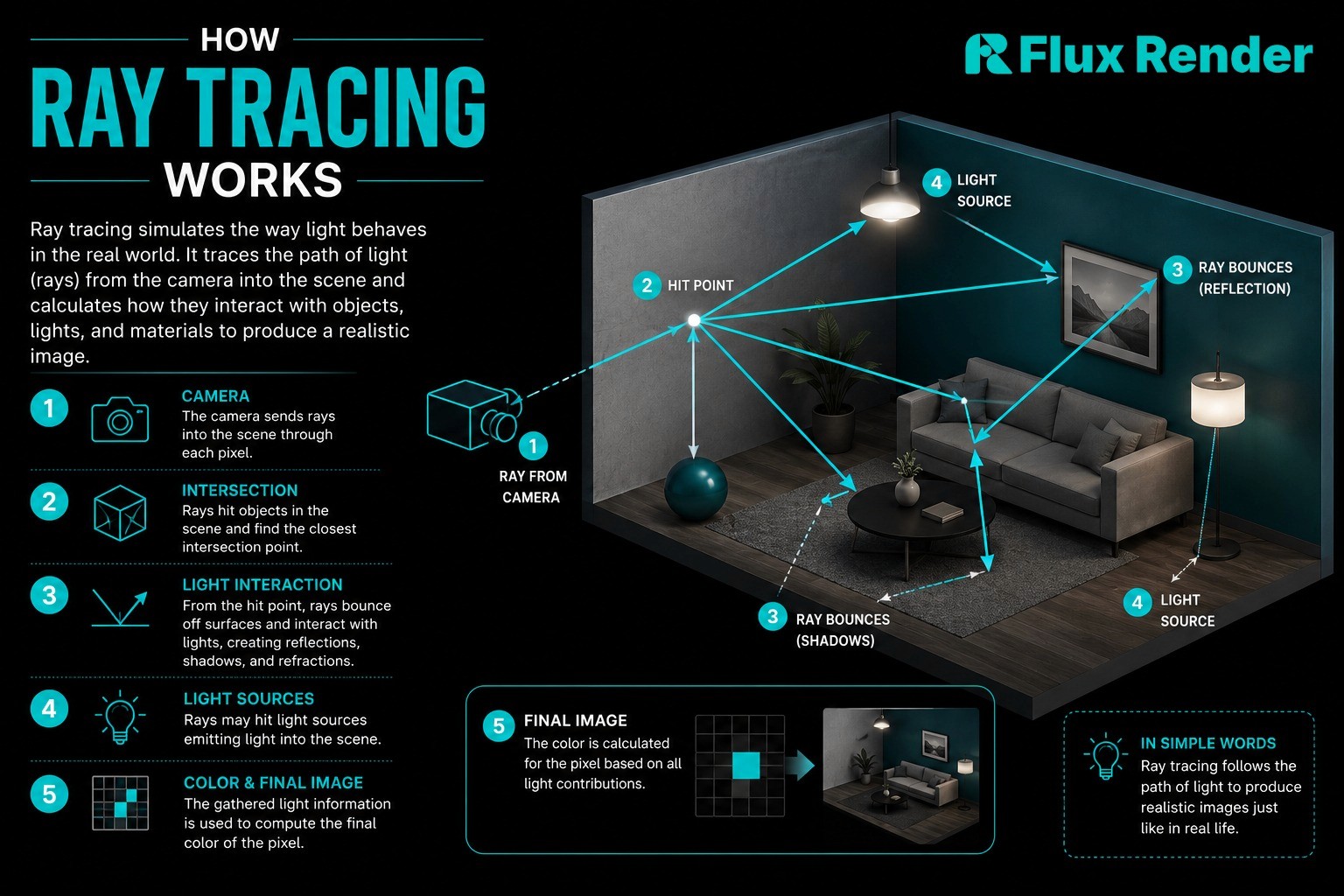
Ray tracing in 3ds Max works by simulating how light travels and interacts with objects inside a 3D scene. Instead of simply displaying colors and textures, the renderer calculates how light rays bounce between surfaces to create realistic lighting and reflections.
When you start a render, rays are traced from the camera into the scene. These rays interact with materials, lights, and objects to determine how the final image should look. If a ray hits a reflective surface like metal or glass, additional rays are generated to calculate reflections and refractions. The renderer also checks how light spreads across the environment to produce accurate shadows and indirect lighting.
Modern render engines in 3ds Max such as V-Ray, Corona Renderer, and Arnold use advanced ray tracing and path tracing techniques to achieve photorealistic results.
This is why materials like chrome, glossy floors, glass, and water appear much more natural compared to traditional rendering methods.
Ray Tracing Calculates:
Reflections on shiny surfaces
Refractions through glass and transparent materials
Realistic shadows
Global illumination and indirect lighting
Light bouncing between objects
Common Render Engines That Use Ray Tracing in 3ds Max
V-Ray
Corona Renderer
Arnold Renderer
NVIDIA RTX GPU Rendering
The more light bounces and calculations involved, the more realistic the render becomes, although it also increases render time.
How to Use Ray Tracing in 3DS Max?
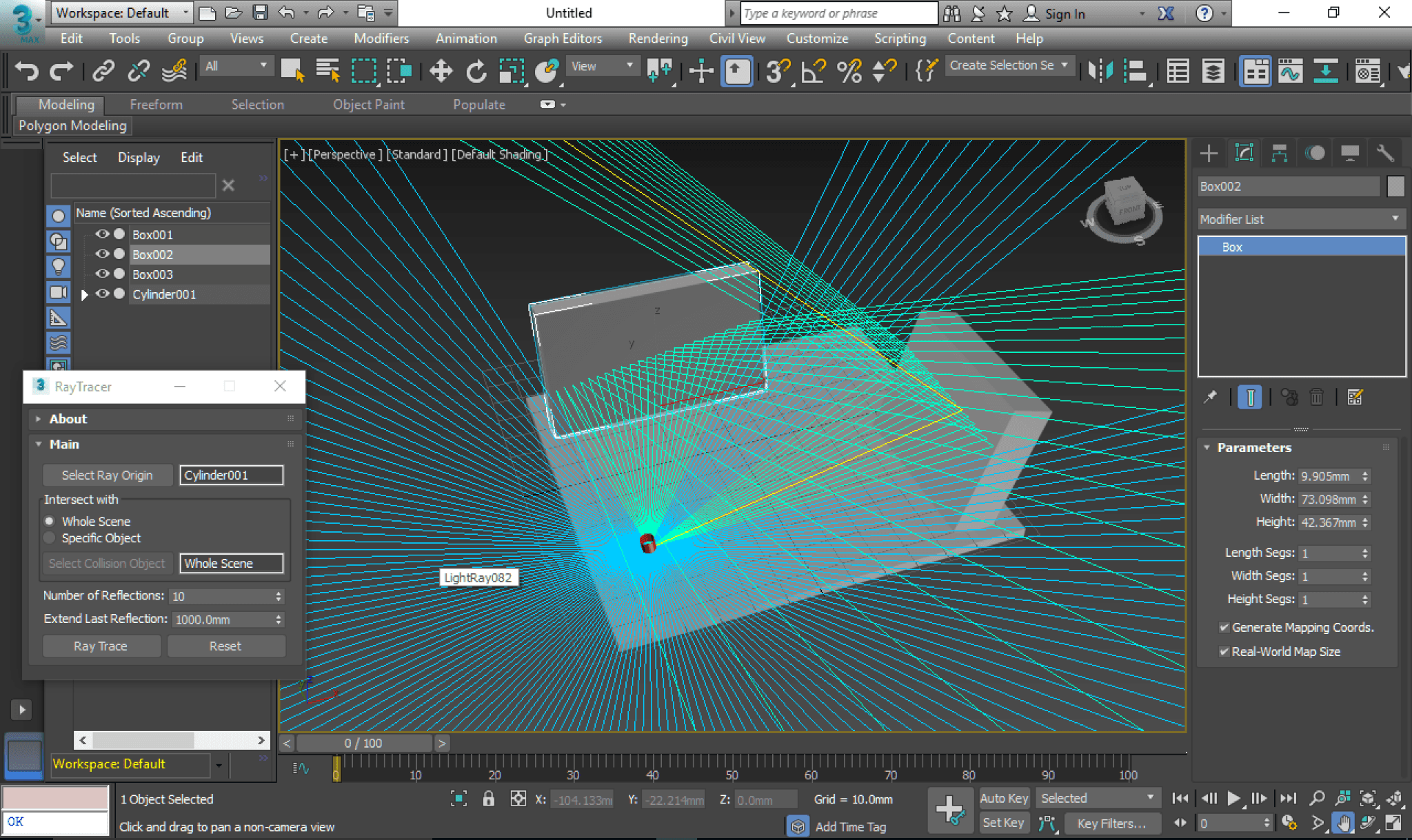
Image credit: ScriptSpot
Using ray tracing in 3ds Max mainly depends on the render engine you are using, such as V-Ray, Corona, or Arnold. Here is a simple setup process beginners can follow.
Step 1: Choose a Ray Tracing Render Engine
Open the Render Setup panel and select a renderer like:
V-Ray
Corona Renderer
Arnold
These render engines support ray traced lighting, reflections, and shadows.
Step 2: Add Realistic Materials
Apply materials with:
Reflection
Roughness
Refraction for glass
Ray tracing works best with physically accurate materials.
Step 3: Set Up Proper Lighting
Use:
HDRI lighting
V-Ray Sun
Corona Sun
Area lights
Good lighting is essential for realistic ray traced results.
Step 4: Enable Global Illumination
Turn on Global Illumination (GI) in your render settings to allow light to bounce naturally around the scene.
This helps create softer shadows and realistic indirect lighting.
Step 5: Increase Render Quality
Adjust settings like:
Samples
Noise threshold
Reflection quality
Higher settings improve realism but increase render time.
Step 6: Render the Scene
Start with low resolution test renders first, then render the final image once lighting and materials look correct.
Using GPU rendering with RTX graphics cards can also speed up ray traced rendering significantly.
What Are the Benefits of Using Ray Tracing in 3ds Max?
Creates realistic lighting, soft shadows, and natural light bouncing.
Produces accurate reflections and refractions for glass, metal, and glossy materials.
Improves the overall realism and depth of interior and exterior scenes.
Enhances material quality for more photorealistic renders.
Delivers high quality visuals ideal for architectural and product visualization.
Works seamlessly with render engines like V-Ray, Corona, and Arnold.
Helps create more professional and cinematic looking renders.
Conclusion
Ray tracing helps create more realistic renders in 3ds Max by improving lighting, shadows, reflections, and material quality. It is widely used in architectural visualization, product rendering, and animation to achieve photorealistic results.
Since ray traced rendering can be hardware intensive, many artists use cloud rendering platforms like Flux Render to render projects faster and improve workflow efficiency.

Frequently Asked Questions
Which render engine is best for ray tracing in 3ds Max, V-Ray, Corona, or Arnold?
It depends on your workflow. V-Ray is great for flexibility, Corona is beginner friendly, and Arnold is widely used for high end production.
Does ray tracing require an RTX graphics card to work properly?
No, but RTX GPUs can significantly speed up ray traced rendering and viewport performance.
Why do ray traced renders take longer than normal renders?
Because the renderer calculates realistic light bounces, reflections, shadows, and material interactions in detail.
What is the difference between ray tracing and path tracing in 3ds Max?
Path tracing is a more advanced form of ray tracing that simulates multiple light bounces for more realistic lighting.
How can I reduce noise and speed up ray traced renders?
Use denoisers, optimize lighting and materials, lower unnecessary reflections, and use GPU or cloud rendering solutions.